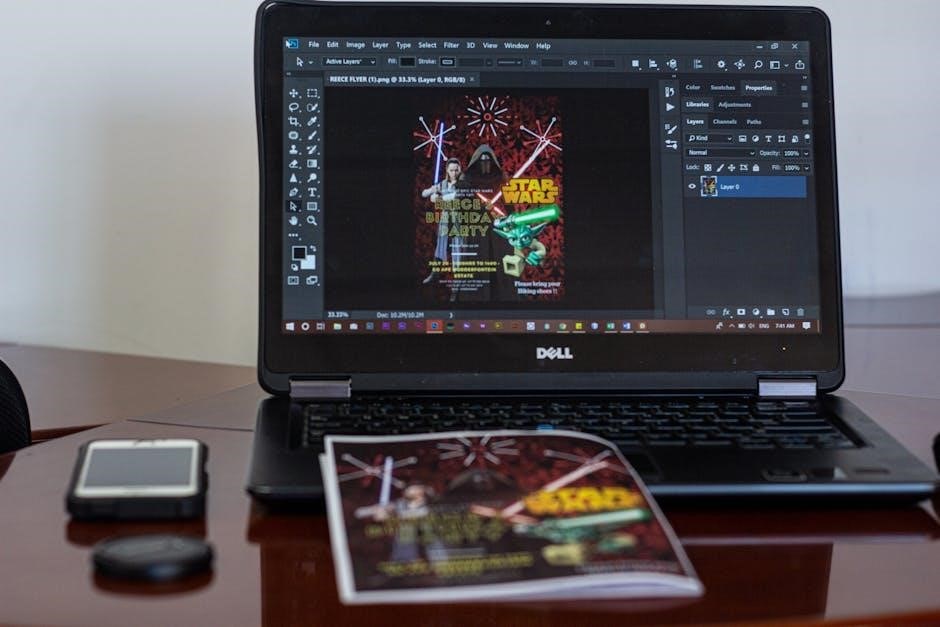
Understanding Color PDF Printing
Color PDF printing relies on precise color management, utilizing tools like ColorSync and PDF-XChange Editor for accurate output, ensuring vibrant and true-to-life results.
What is Color Management in PDF Printing?
Color management in PDF printing is a crucial system designed to ensure consistent and accurate color reproduction across different devices – from your monitor to the printer. It addresses the variations in how devices perceive and render colors. This process involves profiles, like sRGB or Adobe RGB, which act as translators, converting colors between different color spaces.
Essentially, it’s about minimizing discrepancies. Without proper color management, a PDF that looks vibrant on your screen might print with washed-out or inaccurate colors. Tools like Mac’s ColorSync Utility play a vital role, allowing you to “prematch” to a printer profile, selecting an intent – perceptual, colorimetric, or saturation – to optimize the color conversion for the specific printer and paper type. This ensures the printed output closely matches the intended colors within the PDF.
Why PDFs Might Not Print in Color
Several factors can cause a PDF to print in grayscale or with incorrect colors, despite being designed for color output. A common issue is the PDF’s color mode; if it’s set to grayscale or monochrome, color information is absent. Incorrect printer settings are also frequent culprits – ensuring the correct printer driver is selected and color mode is enabled is vital.
Furthermore, the PDF itself might contain color overrides, such as those found in PDF-XChange Editor, set to grayscale. Driver conflicts or outdated firmware can also interfere with color processing. Finally, discrepancies between the PDF’s color space (RGB vs. CMYK) and the printer’s capabilities can lead to inaccurate results. Addressing these potential issues systematically is key to achieving vibrant, accurate color prints.
Checking PDF Settings for Color
Thoroughly examine the PDF’s color space, layers, and transparency settings to identify potential issues hindering accurate color reproduction during the printing process.
Verifying Color Space within the PDF
Determining the color space embedded within your PDF document is crucial for predictable color output. PDFs can utilize various color spaces, with RGB and CMYK being the most common. RGB (Red, Green, Blue) is typically used for digital displays, while CMYK (Cyan, Magenta, Yellow, Black) is the standard for professional printing.
If your PDF contains RGB color data and is sent directly to a CMYK printer without color conversion, the results can be significantly different than expected – often appearing washed out or with inaccurate hues. Conversely, a CMYK PDF printed on an RGB-based device might exhibit unexpected color shifts.
To verify the color space, open the PDF in Adobe Acrobat Pro (or a similar PDF editor) and navigate to the “File” > “Properties” section. Look for the “Color Space” field under the “Advanced” tab. Understanding the existing color space allows you to make informed decisions about color management and potential conversions before printing.
Examining PDF Layers and Transparency
PDFs utilizing layers and transparency can introduce complexities in color printing. Transparency, while visually appealing, requires “flattening” during the printing process – a conversion that can sometimes alter color appearance. Layers, similarly, need to be considered as they might contain differing color profiles or settings.
When a PDF with transparency is printed, the printer driver rasterizes the transparent elements, potentially leading to subtle color shifts or unexpected blending effects. The method used for flattening transparency (e.g., through color management settings in Acrobat Pro) significantly impacts the final output.
Examine your PDF for layers in Adobe Acrobat Pro by opening the “Layers” panel. Check if each layer adheres to a consistent color space. Be mindful that complex transparency effects may necessitate careful printer driver adjustments to achieve accurate color reproduction. Always preview the flattened PDF before final printing.
PDF Color Mode: RGB vs. CMYK
Understanding RGB and CMYK color modes is crucial for accurate PDF printing. RGB (Red, Green, Blue) is used for digital displays, while CMYK (Cyan, Magenta, Yellow, Key/Black) is standard for printing. PDFs created in RGB may not translate perfectly to CMYK, resulting in color variations.
If your PDF is in RGB, the printer driver or color management system will convert it to CMYK. This conversion isn’t always seamless, potentially leading to muted or inaccurate colors. Ideally, documents intended for print should be created in CMYK from the outset.
To check your PDF’s color mode in Adobe Acrobat Pro, go to “File > Properties” and look under the “Color” tab. If it’s RGB, consider converting it to CMYK before printing, utilizing appropriate color profiles for optimal results. Incorrect color mode is a frequent cause of disappointing print outcomes.

Printer Settings for Color PDF Output
Optimal color PDF printing demands selecting the correct printer driver and meticulously adjusting color settings, including mode and profile choices for accuracy.
Selecting the Correct Printer Driver
Choosing the right printer driver is foundational for accurate color PDF printing. A driver acts as the translator between your computer’s instructions and the printer’s hardware, directly impacting color reproduction. Utilizing a generic or outdated driver often leads to inaccurate colors, banding, or even a complete inability to print in color.
Ensure you’ve downloaded and installed the latest driver specifically designed for your printer model from the manufacturer’s website. Avoid relying on drivers automatically installed by your operating system, as these may not be optimized for color accuracy. During driver installation, pay close attention to any prompts regarding color management settings; selecting the appropriate options here can significantly improve print quality.
Furthermore, verify that the selected driver within your print dialog box corresponds to your intended printer. Multiple printers connected to a single computer can sometimes cause confusion, leading to the wrong driver being utilized. Regularly updating your printer driver is a proactive step towards consistent and vibrant color PDF output.
Adjusting Printer Color Settings
Fine-tuning printer color settings within the print dialog is crucial for achieving desired results when printing PDFs. Begin by verifying the Color Mode; ensure it’s set to “Color” rather than “Grayscale” or “Monochrome” for vibrant output. Next, explore Color Profile Selection – options like sRGB or Adobe RGB influence color gamut and accuracy.
sRGB is generally suitable for web graphics, while Adobe RGB offers a wider color range, ideal for professional photography. Experiment to determine which profile best suits your PDF’s content. Don’t overlook Paper Type; different papers absorb ink differently, impacting color appearance. Select a paper type that closely matches your stock.
Many printers also offer advanced color adjustment options, allowing you to tweak brightness, contrast, and individual color channels. Careful calibration of these settings, combined with the correct driver and color profile, will yield the most accurate and visually appealing color PDF prints.
Setting Color Mode (Color, Grayscale, Monochrome)
Selecting the appropriate color mode is the foundational step in achieving accurate color PDF printing. The print dialog typically offers three primary options: Color, Grayscale, and Monochrome. Choosing “Color” instructs the printer to utilize its full color capabilities, reproducing the PDF’s colors as intended. However, if your PDF contains only black and white elements, or you specifically desire a black and white print, selecting “Grayscale” or “Monochrome” is appropriate.
“Grayscale” produces shades of gray, while “Monochrome” uses only black ink. Incorrectly selecting a grayscale or monochrome mode when a color PDF is intended will result in a loss of color information, rendering images and graphics in shades of gray. Always double-check this setting before initiating the print process to avoid unexpected results.

Color Profile Selection (sRGB, Adobe RGB, etc.)

Color profiles, like sRGB and Adobe RGB, are crucial for accurate color reproduction during PDF printing. These profiles define the range of colors a device can produce. sRGB is the standard color space for web graphics and is generally a safe choice for most printing scenarios, ensuring consistent results across different devices. However, if your PDF was created using Adobe RGB – which has a wider color gamut – selecting that profile in your printer settings can yield more vibrant and accurate colors, provided your printer supports it.
Mismatched profiles can lead to color shifts. If the printer profile doesn’t match the PDF’s, colors may appear washed out or inaccurate. Experimenting with different profiles, and understanding your printer’s capabilities, is key to optimal color printing.
Paper Type and Color Settings
Paper choice significantly impacts color vibrancy in PDF printing. Coated papers, like glossy or matte, offer a smoother surface for ink adhesion, resulting in richer, more saturated colors. Uncoated papers absorb more ink, potentially leading to a flatter appearance. Your printer driver allows selecting paper types, optimizing ink distribution for the chosen surface.
Beyond the type, paper color influences the final output. Bright white paper maximizes color brilliance, while off-white or cream papers can create a warmer, softer tone. Adjusting printer color settings – such as intensifying color saturation – can compensate for paper limitations. Always test print to verify color accuracy before a large print run, considering both paper and printer settings.

Software-Specific Color Printing Options
Adobe Acrobat Pro and PDF-XChange Editor offer dedicated color management features, enabling precise control over color output and overrides for optimal PDF printing.
Adobe Acrobat Pro: Color Management Settings
Adobe Acrobat Pro provides robust color management settings crucial for accurate PDF printing. Access these settings through Edit > Print Production > Color Conversion. Here, you can define color management policies, specifying how colors should be handled during the printing process.
Key settings include the Conversion Options, allowing you to choose between Perceptual, Relative Colorimetric, and Saturation rendering intents. Perceptual prioritizes visual relationships between colors, while Relative Colorimetric aims for accurate color matching within the gamut. Saturation maximizes color vibrancy, potentially sacrificing accuracy.
Furthermore, you can select Source Profile and Destination Profile, defining the color spaces of the PDF and the printer, respectively. Choosing the correct profiles—like sRGB or Adobe RGB—is vital for consistent color reproduction. Experimenting with these settings ensures your PDFs print with the intended colors and vibrancy, avoiding unexpected shifts or dullness.
PDF-XChange Editor: Color Override Settings
PDF-XChange Editor offers a straightforward approach to controlling color output during printing. Within the advanced print options, locate the Color Override setting. This powerful feature allows you to directly influence how colors are rendered, bypassing the PDF’s embedded color information if needed.
You can select from four options: Auto, which respects the PDF’s color settings; Grayscale, converting the document to shades of gray; Monochrome, using only black and white; and crucially, Color, forcing a color print even if the printer defaults to grayscale.
Selecting Color is particularly useful when troubleshooting unexpected grayscale prints or ensuring vibrant color reproduction. Carefully consider the document’s intended appearance and the printer’s capabilities when choosing an override setting for optimal results. This setting provides direct control over the final printed output.
Mac ColorSync Utility for PDF Printing
ColorSync Utility on Mac provides advanced control over PDF color printing, enabling precise adjustments for optimal output. When printing, selecting Prematch to printer profile unlocks further customization options. This directs ColorSync to convert the PDF’s colors to match your printer’s specific capabilities, ensuring accuracy and consistency.
Crucially, the Intent pop-up menu allows you to choose a rendering intent: Perceptual prioritizes visual relationships between colors, Colorimetric aims for absolute color accuracy, and Saturation maximizes color vibrancy. Each intent yields different results, depending on the PDF and printer.
Experimenting with these options is key to achieving desired color reproduction. Remember to consult your printer’s documentation for recommended settings and profiles. ColorSync offers a powerful way to fine-tune color output for professional-quality PDF prints.
Prematch to Printer Profile Options
Prematching to a printer profile within ColorSync Utility is a critical step for accurate PDF color printing on macOS. This process leverages the printer’s unique color characteristics, converting the PDF’s color space to one the printer can faithfully reproduce. Selecting this option initiates a color transformation before sending the print job, bypassing potential inconsistencies.
The effectiveness hinges on utilizing the correct printer profile – a file detailing the printer’s color gamut and response. Without it, colors may appear washed out or inaccurate. Following profile selection, the Intent pop-up menu becomes accessible, offering choices like Perceptual, Colorimetric, or Saturation, each influencing how colors are mapped during conversion.
Properly configured prematching significantly enhances color fidelity, ensuring printed PDFs closely match their on-screen appearance.
Intent Pop-up Menu (Perceptual, Colorimetric, Saturation)
The Intent pop-up menu within ColorSync Utility dictates how colors are rendered when converting between color spaces during PDF printing. Perceptual intent prioritizes visually pleasing results, compressing the color gamut to fit the printer’s range, often sacrificing absolute accuracy for overall harmony. It’s ideal for photographs.
Colorimetric intent aims for precise color matching, but may clip colors outside the printer’s gamut, leading to less vibrant output. Relative Colorimetric maintains white point, while Absolute Colorimetric preserves both white point and color values.
Saturation intent maximizes color vibrancy, even at the expense of accuracy, making it suitable for graphics where impact is key. Choosing the right intent depends on the PDF content and desired outcome, balancing fidelity with visual appeal.

Troubleshooting Common Color Printing Issues
Addressing color inaccuracies often involves checking printer drivers, updating firmware, and resolving potential conflicts, particularly concerning unwanted green coloration problems.
Green Coloration Problems & Adjustments
Addressing a green tint in printed PDFs requires a systematic approach, as it isn’t a standard printing fix. Often, the issue stems from color profile mismatches between the PDF, the printer, and the software used. Begin by verifying the color space within the PDF itself – is it RGB or CMYK? Incorrect color mode can lead to unexpected results.
Next, explore adjustments within your printer settings. Many printers allow for color balance adjustments, where you can reduce the amount of green ink being applied. Experiment with slight reductions to see if the issue resolves. Furthermore, ensure your printer driver is up-to-date, as outdated drivers can cause color interpretation errors. Consider testing with a different PDF to isolate whether the problem is document-specific or printer-related. If the problem persists, advanced color calibration techniques, potentially using a colorimeter, might be necessary to create a custom ICC profile tailored to your specific printer and ink combination.
Driver Conflicts and Updates
Printer driver issues are frequent culprits behind inaccurate color PDF printing. Conflicts can arise when multiple printer drivers are installed, or when the current driver is corrupted or outdated. Begin by completely uninstalling the existing printer driver and then downloading the latest version directly from the manufacturer’s website – avoid relying on Windows Update for this crucial component.
During the installation process, pay close attention to any prompts regarding color management settings. Ensure the driver is configured to utilize the correct color profiles for your printer and paper type. After installation, test printing a color PDF to verify the issue is resolved. If conflicts persist, temporarily disable any third-party printing software or utilities that might be interfering with the driver’s functionality. Regularly checking for driver updates is a proactive measure to maintain optimal color accuracy and prevent future printing problems.
Outdated Printer Firmware
Printer firmware, the internal software controlling your printer’s operations, significantly impacts color accuracy. Outdated firmware can lead to misinterpretations of color data from PDFs, resulting in washed-out, inaccurate, or inconsistent prints. Manufacturers regularly release firmware updates to address bugs, improve performance, and enhance color management capabilities.
Check your printer manufacturer’s website for the latest firmware version compatible with your model. The update process typically involves downloading the firmware file and installing it through the printer’s control panel or a dedicated utility. Always follow the manufacturer’s instructions carefully during the update, as interruption can potentially damage the printer. After updating, perform a test print of a color PDF to confirm the improvements. Keeping your printer’s firmware current is a simple yet effective step towards achieving reliable and vibrant color PDF printing.

Advanced Color Calibration Techniques
Precise color reproduction demands calibration using colorimeter devices and custom ICC profiles, ensuring PDFs print with accuracy and consistency across various printers.
Using Colorimeter Devices
Colorimeter devices represent a crucial step towards achieving professional-grade color accuracy when printing PDFs. These tools physically measure the color output of your printer, comparing it to the intended colors within the PDF file. This measurement process generates data used to create or refine ICC profiles, which are essential for color management.
The process typically involves attaching the colorimeter to a specific area of your printed output. Specialized software then guides you through printing a color target – a chart containing a wide range of colors. The colorimeter reads these printed colors and transmits the data to the software.
Different colorimeters offer varying levels of precision and features. Some can measure ambient light, which impacts color perception, while others are designed for specific printer types. Investing in a quality colorimeter, coupled with appropriate software, significantly improves the fidelity of your PDF prints, ensuring they closely match your on-screen expectations.
Creating Custom ICC Profiles
Custom ICC profiles are the cornerstone of precise color reproduction when printing PDFs, going beyond generic settings. These profiles are tailored specifically to your printer, ink, and paper combination, capturing their unique color characteristics. Creating them involves using a colorimeter to measure a standardized color target printed by your system.
Software then analyzes this data, building a profile that translates between the color spaces of your PDF (like RGB or CMYK) and your printer’s capabilities. This ensures that the colors in your PDF are accurately rendered during printing. The process demands careful calibration and a controlled environment for optimal results.
While more complex than using pre-built profiles, custom ICC profiles offer unparalleled control over color accuracy. They minimize color discrepancies and guarantee consistent, predictable prints, especially crucial for professional graphic design and photographic work. Regularly updating these profiles is recommended to account for changes in ink or paper.

Color Printing Considerations for Different PDF Types
PDF type impacts color printing; photographs demand high resolution and accurate profiles, while graphic designs require careful CMYK conversion for optimal results.
Printing Photographs in PDF Format
Printing photographs as PDFs requires special attention to color settings to maintain image fidelity. Ensure the PDF embeds the correct color profile – typically sRGB or Adobe RGB – matching the original image’s color space. Utilizing a high-resolution PDF is crucial; 300 DPI is generally recommended for professional-quality prints.

When using software like Adobe Acrobat Pro, verify color management settings are enabled and configured to use the embedded profile. Consider the printing intent; ‘Perceptual’ often yields the most visually pleasing results for photographs, preserving color relationships even if absolute accuracy is slightly compromised.
Furthermore, the printer’s capabilities play a significant role. Select a printer driver that supports the PDF’s color space and offers appropriate color calibration options. Avoid converting photographs to CMYK unless specifically required by the printing service, as this can sometimes lead to color shifts and loss of detail. Proper PDF creation and printer setup are key to vibrant, accurate photo prints.
Printing Graphic Designs in PDF Format
Printing graphic designs in PDF format often demands CMYK color mode for professional results, especially for commercial printing. However, maintaining color accuracy requires careful consideration of color profiles and printer settings. PDFs created for graphic design should ideally be PDF/X-1a compliant, ensuring all fonts and colors are embedded.
Utilize software features like Adobe Acrobat Pro’s color conversion options to accurately transform RGB designs to CMYK, previewing the results to minimize unwanted color shifts. When using PDF-XChange Editor, verify the color override is set to ‘Color’ to prevent grayscale or monochrome output.
Printer selection is vital; ensure the printer supports CMYK and offers color calibration options. Selecting the appropriate paper type and adjusting printer color settings, including color mode and profile selection, will further enhance the final printed output, ensuring designs appear as intended.